Using an Apple iPad or iPhone as Your POS
EasyEats knowledge base and support documentation.
Turn your iPad into a full point of sale for your food truck or restaurant, with no app store download. The EasyEats Web POS runs right in Safari, and with three quick taps you can add it to your iPad's Home Screen so it opens full screen with its own icon, just like a native app.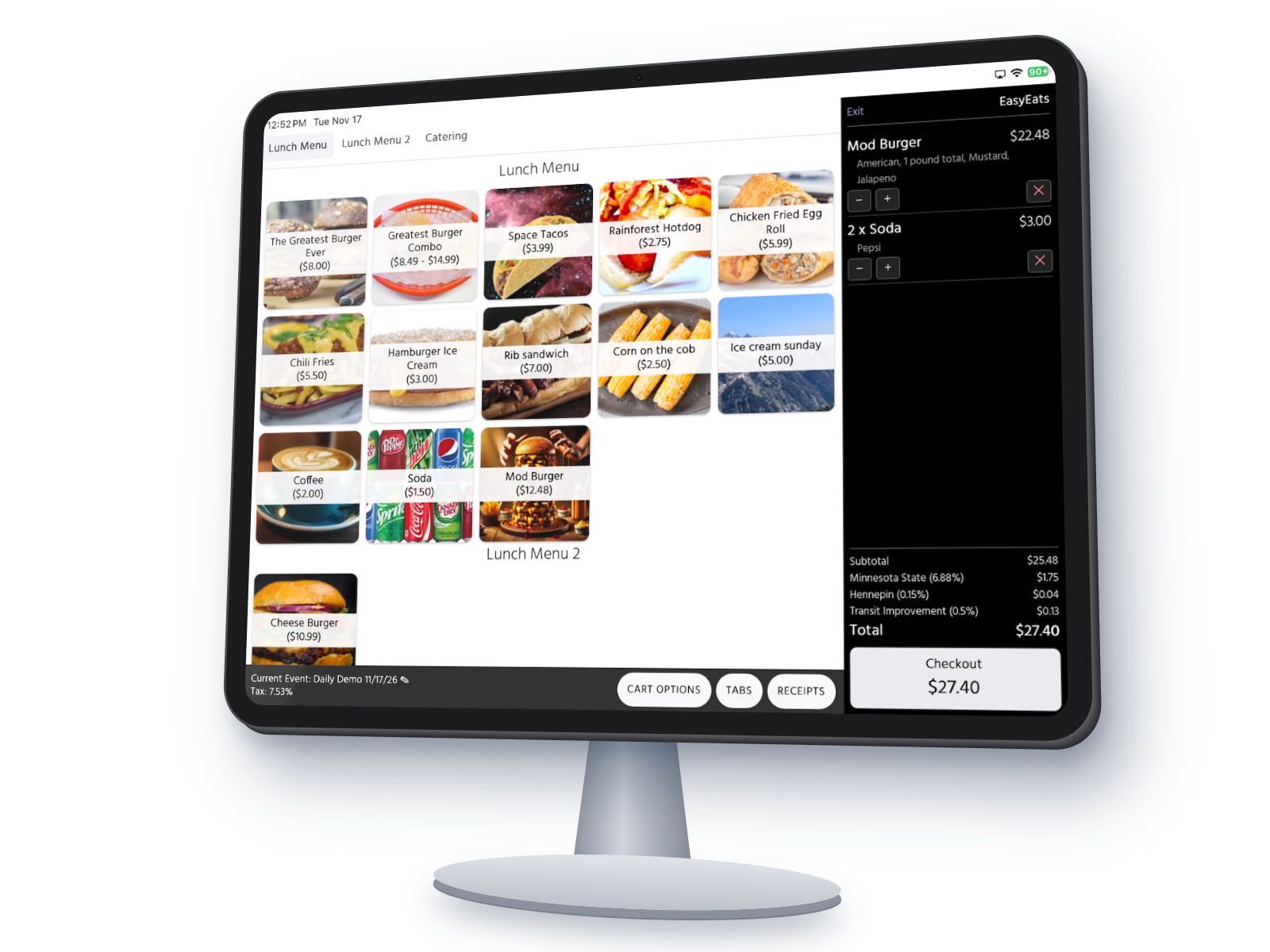
What is the EasyEats Web POS?
The Web POS is the EasyEats point of sale that works in your web browser. Ring up orders, take payments and send tickets to your kitchen from any iPad that can reach easyeats.com. It uses the same menu, prices and order queue as the rest of your EasyEats account, so there is nothing extra to set up.
Who can use it: The Web POS is available to restaurant owners and managers. If you don't see it in your menu, ask your account owner to check your user level.
Step 1: Open the Web POS from Daily Startup
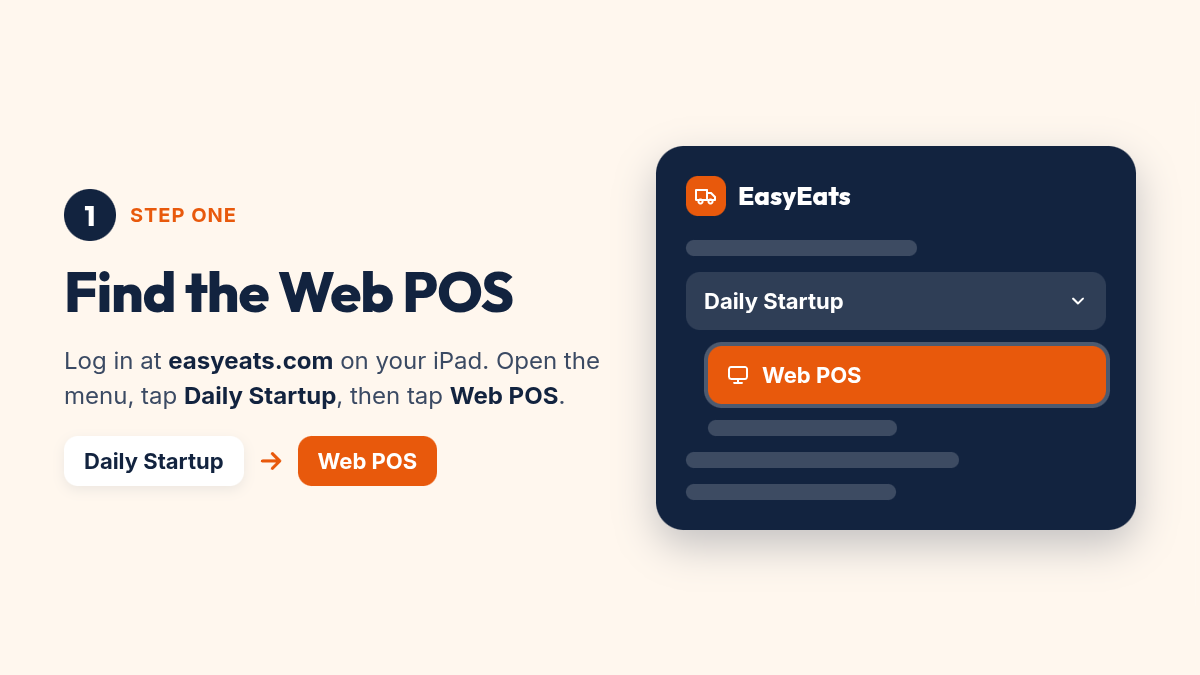
- On your iPad, open Safari and log in at easyeats.com.
- Open the menu and tap Daily Startup.
- Tap Web POS. Your register opens with your menu ready to go.
Step 2: Add the Web POS to your iPad Home Screen
While the Web POS is open in Safari:
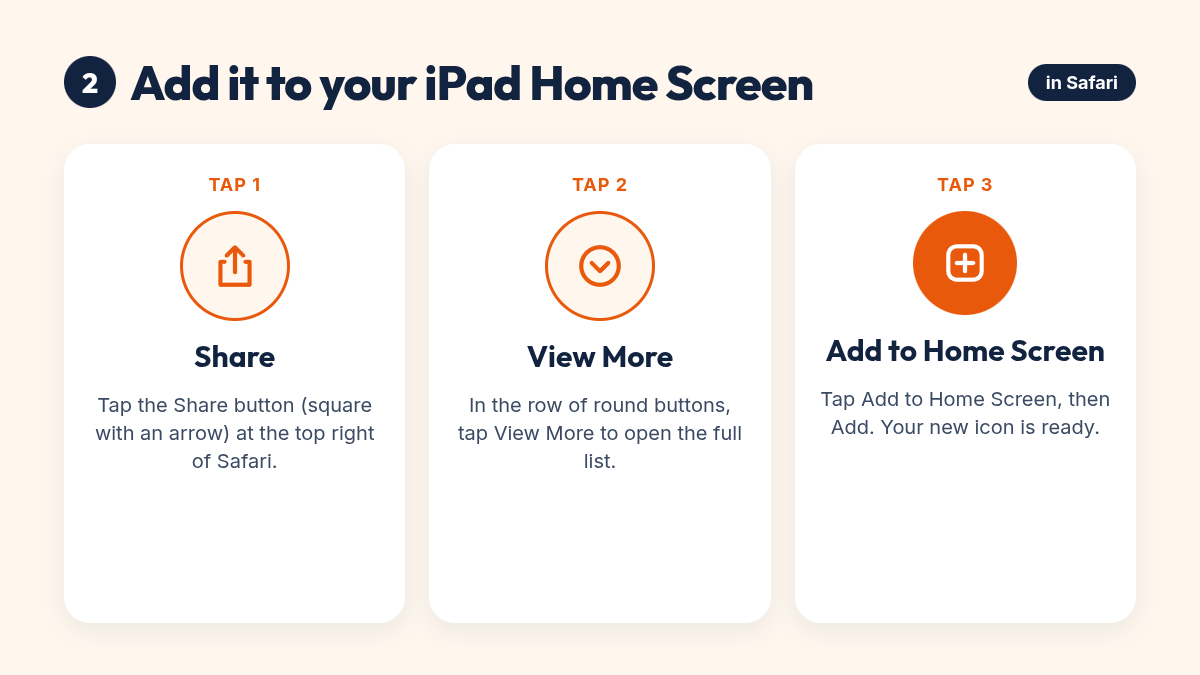
- Tap the Share button (the square with an arrow pointing up) at the top right of Safari.
- In the row of round buttons, tap View More.
- Tap Add to Home Screen, then tap Add.
That's it! You'll find a new EasyEats Web POS icon on your Home Screen.
Why install it on your Home Screen?
- Full screen register: no address bar or browser tabs taking up space on your counter.
- One-tap launch: open your POS straight from its own icon at the start of every shift.
- Feels like a native app: the best experience for ringing up orders fast during a rush.
- Always up to date: there is nothing to update in an app store. You always get the latest version of EasyEats.
Frequently Asked Questions
Do I need to download an app from the App Store?
No. The Web POS runs in Safari. Adding it to your Home Screen simply gives it its own icon and a full-screen view.
I don't see "Add to Home Screen." What should I do?
Make sure you tapped View More after opening the Share menu. The full list of actions, including Add to Home Screen, appears below the row of round buttons. Also check that you are using Safari.
I don't see Web POS under Daily Startup.
The Web POS is available to owners and managers. Ask the owner of your EasyEats account to check your user level, or contact EasyEats support.
Can I install it on more than one iPad?
Yes. Follow the same steps on each iPad you want to use as a register.
Which processors and readers are supported?
Any Wifi based reader is supported. If you do not have a wifi based reader, you can manually enter card numbers in the interface.